
CoinTech2u Setup Tutorial 2026: Launch AI Trading on OKX in 10 Minutes ($10,000 Live Test)

I just clicked one button. My OKX account went from 0 positions to 56 open trades in seconds — across three sub-accounts, fully automated, with no hands on the keyboard.
This is the full setup walkthrough.
Introduction
If you’ve watched my first CoinTech2u review, you know I’ve been running an AI trading bot on a $5,000 OKX account for almost two months now. The results held up — so today I’m scaling up. A fresh $10,000 account, three sub-accounts for risk diversification, and the same setup process I’ll walk you through below.
This guide is the companion to my YouTube tutorial video. Watch the video for the visual walkthrough, then come back here for the written reference, the exact pitfalls to avoid, and the full transparency on my $5,000 account performance to date.
The whole setup takes about 10 minutes if you already have an OKX account. Let me show you.
$5,000 → 50 Days on OKX: Full Performance Transparency
Before I walk you through the new $10,000 setup, let me show you exactly where my first test account stands today. This is the account I’ve been running since March 7, 2026 — about 50 days of live AI trading on OKX with a starting capital of $5,000.
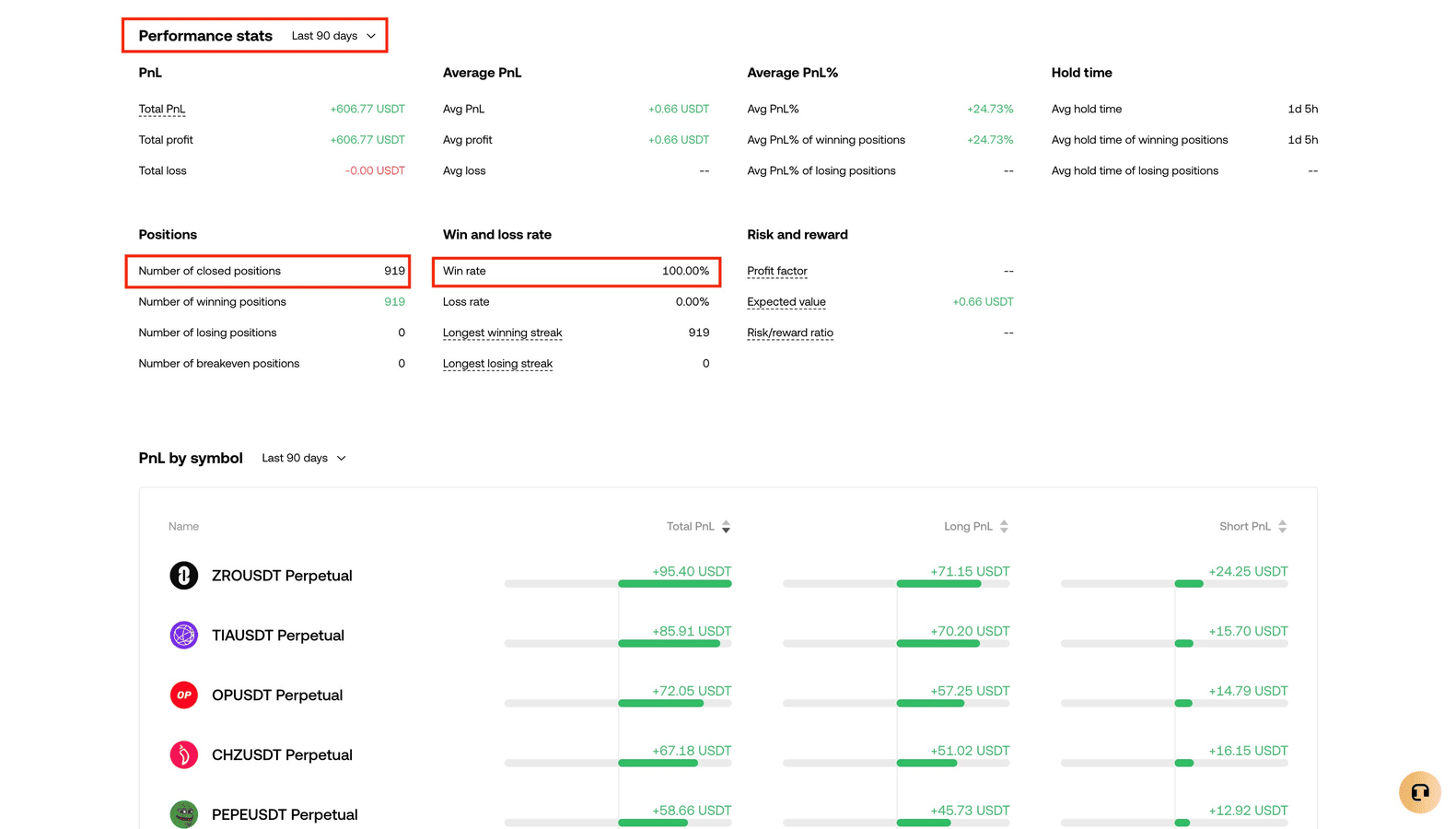
Looking at the OKX trading analysis dashboard right now:
| Metric | Value |
|---|---|
| Closed PnL | +$606.77 USDT |
| Closed positions | 919 |
| Win rate (closed) | 100% |
| Loss rate | 0.00% |
| Average hold time | 1d 5h |
A note on OKX’s data window: OKX’s analysis panel groups stats into 30 / 90 / all-time buckets — there’s no 60-day option. The figures above are from the “Last 90 days” panel and they cover my full 50 days of live trading plus the data window OKX rolls into that bucket.
Two consecutive green months
Both March and April closed every single day in the green:
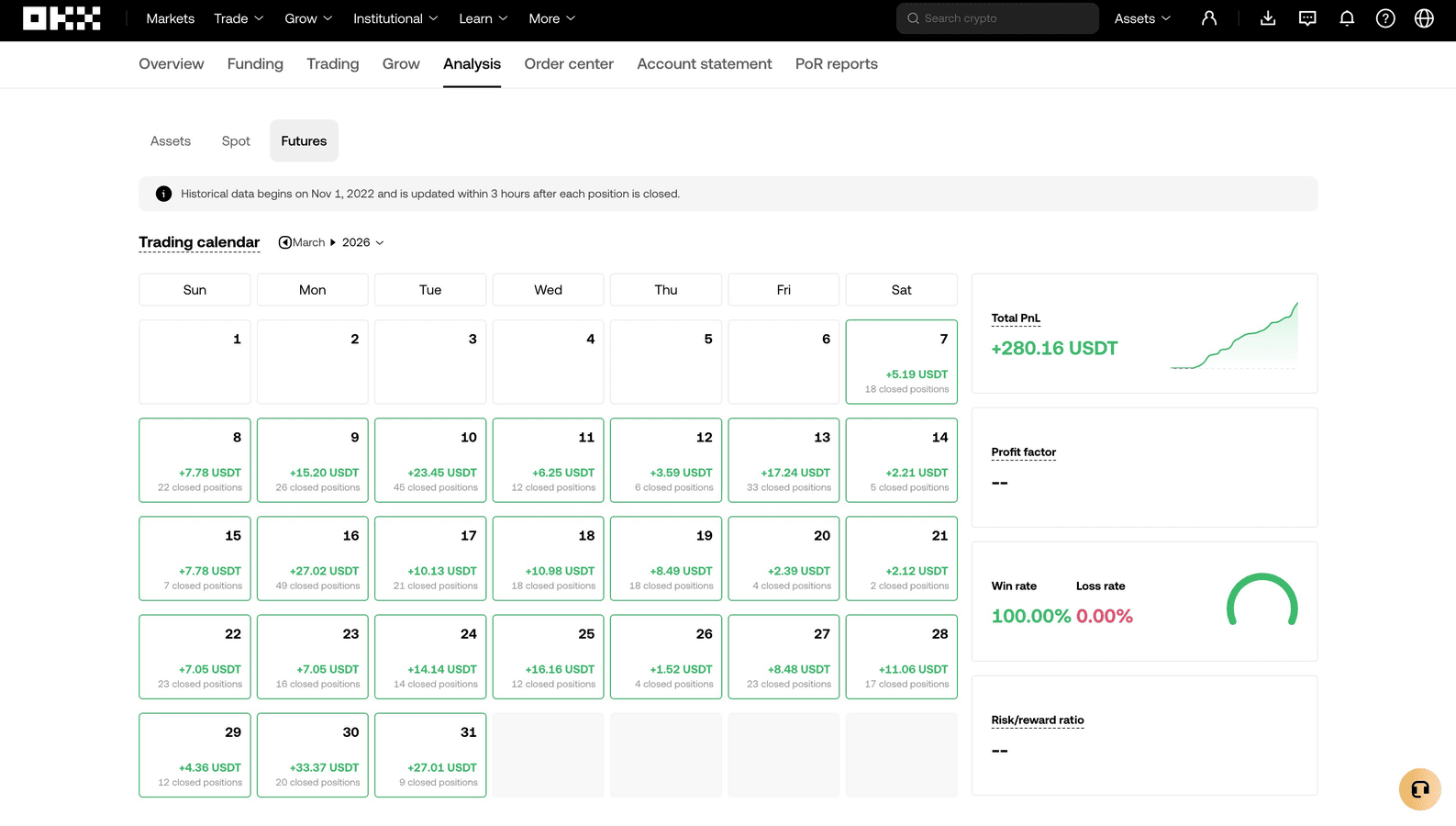
- March 2026: +$280.16 USDT (every day green)
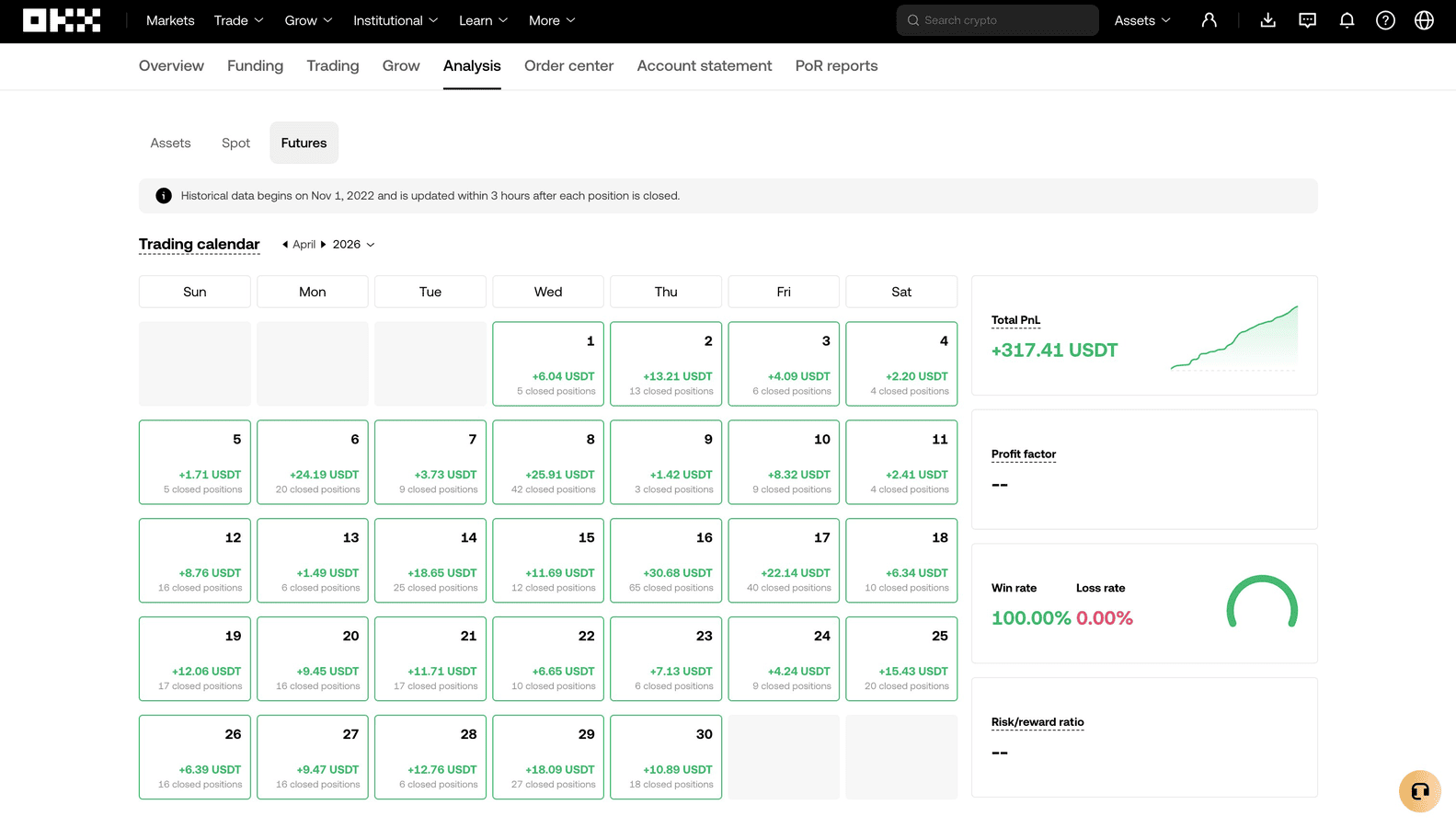
- April 2026: +$317.41 USDT (every day green)
That’s two months of consecutive daily profitability. No losing days, no losing closed trades.
What “100% win rate” actually means
Here’s where most CoinTech2u reviewers stop. The 100% win rate is real — but only on closed trades. I want to show you what that number doesn’t include:
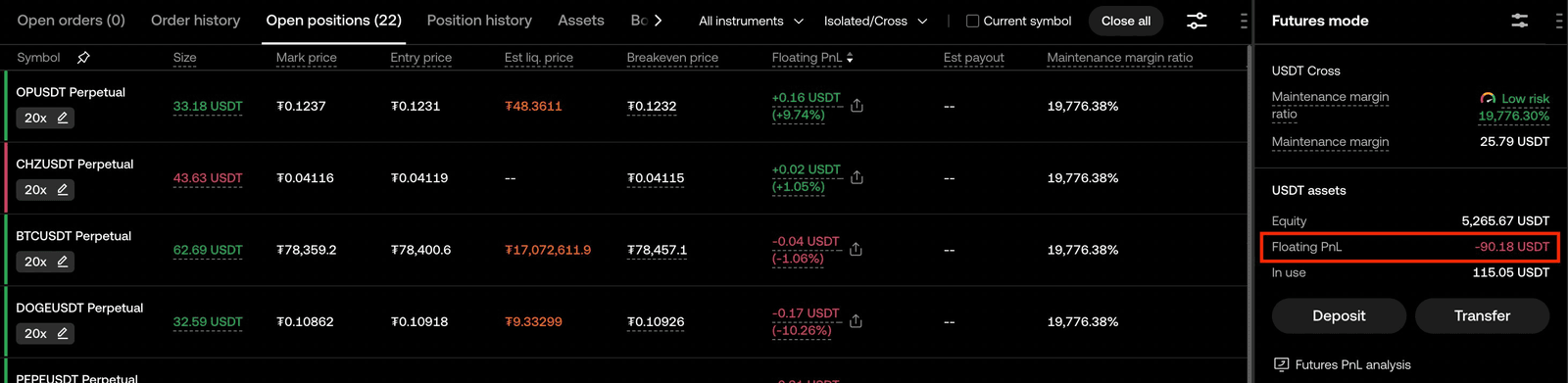
Right now, the same account also has 22 open positions showing a floating loss of -$90.18 USDT. These positions haven’t been closed yet, so they don’t count against the win rate. But they are real money currently in the red.
This is the honest math behind any CoinTech2u review claiming a 100% win rate:
- ✅ Closed trades: 919 winners, 0 losers across 50 days
- ⚠️ Open trades right now: -$90 floating across 22 positions
- 📊 Net realized + unrealized: still solidly profitable, but full transparency matters
This is exactly why I tell people to evaluate any AI trading bot by both numbers — closed PnL and current floating PnL — not just the win rate headline.
Risk disclaimer: Past performance does not guarantee future results. CoinTech2u is not a Martingale bot, even though it shares the DCA averaging concept with Martingale. Pure Martingale runs one-directional with fixed doubling and no stop loss — CoinTech2u runs dual-direction hedging (long + short on each coin), AI-governed DCA that can skip orders during surge events, micro position sizing (~0.3% of capital per entry), per-coin hard stop losses, and a portfolio-level Asset Guard / Equity Guard circuit breaker. Floating losses still exist during volatile periods, but the architecture is built to convert problem positions into closed losing trades rather than let them compound. Only invest what you can afford to lose.
Encouraged by 50 days of consistent performance — and with full awareness of how floating losses work — today I’m setting up a fresh $10,000 account. Here’s exactly how.
Why Split Capital Across Sub-Accounts
Before we get to the 8 steps, one strategic decision matters more than any setting on the dashboard: how you split your capital across sub-accounts.
CoinTech2u recommends — and I follow — a simple rule: each $1,000 unit of capital runs in its own sub-account, capped at 3 sub-accounts. Here’s how that maps:
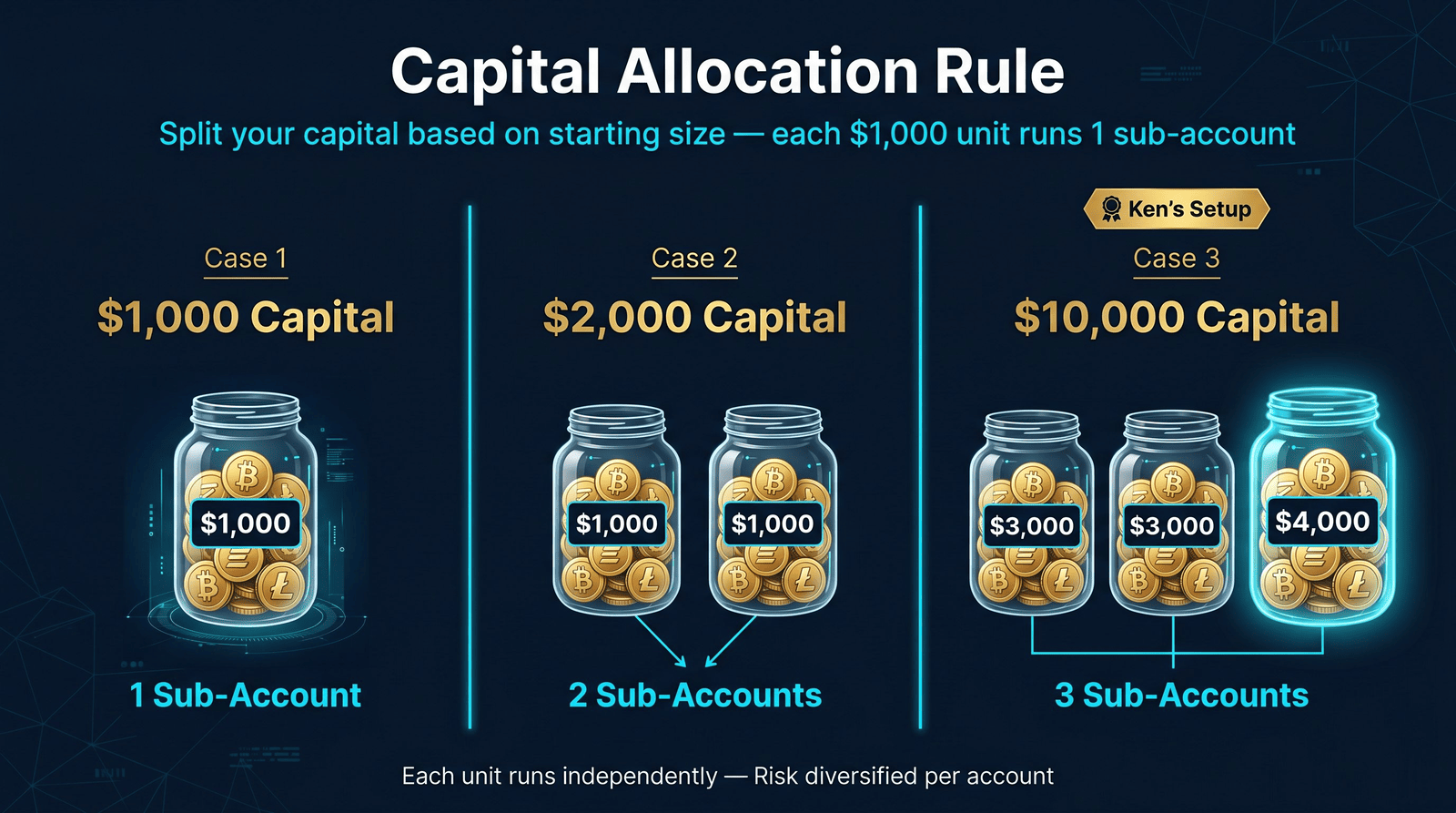
| Starting Capital | Sub-Accounts | Allocation |
|---|---|---|
| $1,000 | 1 | $1,000 |
| $2,000 | 2 | $1,000 + $1,000 |
| $10,000 (Ken’s setup) | 3 | $3,000 + $3,000 + $4,000 |
Why this matters: each sub-account runs its own AI configuration with its own coin selection. By spreading the capital, you’re not putting all $10,000 behind a single set of bot decisions. If one sub-account hits a rough patch, the other two continue independently. It’s basic risk diversification at the account level, not just the trade level.
In Step 8, you’ll also see a CoinTech2u option called “exclude activated tokens” — when enabled on the second and third sub-accounts, it prevents them from running the same coins your first sub-account is already trading. This makes the diversification real, not just structural.
8-Step CoinTech2u Setup Tutorial (10 Minutes)
This is the same setup process from my video tutorial — written here as a reference you can follow at your own pace. Total time, start to finish: about 10 minutes.
Step 1: Register an OKX Account
If you don’t already have OKX, register here using referral code KEN20 for a lifetime 20% trading fee cashback. This is the highest cashback tier available — every trade your bot makes gets 20% back automatically. Over hundreds of trades a month, this compounds into meaningful savings.
CoinTech2u also supports Bitget and Bybit. The same KEN20 code works on both — sign up via Bitget KEN20 or Bybit KEN20 for the same 20% cashback if you prefer those exchanges.
Step 2: Activate Futures Account + Hedging Mode
Once your OKX account is verified and funded, activate the futures account if you haven’t already.
- Go to Trade → Futures
- Click the gear icon → Settings → Account mode → select Futures account
- Click Trading mode → select Hedging mode (this lets the bot open long and short positions on the same coin simultaneously, which is core to the CoinTech2u strategy)
This step takes about 30 seconds and only needs to be done once.
Step 3: Create 3 Sub-Accounts
For my $10,000 capital, I create three sub-accounts in OKX:
- Top-right user icon → Sub-accounts → Create
- Username:
Ken001(or whatever naming convention you prefer) → set password → confirm - Repeat for
Ken002andKen003
You’ll end up with three sub-accounts visible in your sub-account center, ready to receive funds.
Step 4: Transfer Funds to the Trading Wallet
This is the single most common pitfall in OKX setup. Pay attention to the wallet type.
- Assets → Transfer → select Sub-account transfer
- Choose Ken001 → asset USDT → from your main account’s Funding wallet to the sub-account’s Trading wallet
- Amount: $3,000 → confirm
- Repeat for Ken002 ($3,000) and Ken003 ($4,000)
⚠️ Critical: the destination must be the sub-account’s Trading wallet, not the Funding wallet. If you transfer to the Funding wallet, the bot cannot execute trades and you’ll spend 20 minutes wondering why nothing is happening.
After all three transfers, you can switch into each sub-account and confirm the balance: $3,000 / $3,000 / $4,000 = $10,000 total, fully distributed.
Step 5: Register CoinTech2u
- Click my CoinTech2u referral link — referral code KEN20 will be pre-filled
- Enter nickname, email, password → email verification → submit
Registration takes under two minutes. After signing up, you’ll have access to the CoinTech2u dashboard where the API binding happens next.
Step 6: Bind Fast API to Each Sub-Account
This is the second most common pitfall: binding APIs to the wrong sub-account. Here’s how to avoid it.
- In OKX, go to User → Switch sub-account → select Ken001 (this is the critical part — make sure you’re inside the sub-account you want to bind, not your main account)
- In CoinTech2u dashboard → Bind API → name the portfolio (e.g.,
KEN001) → exchange: OKX → choose Fast API - Click Bind now → OKX redirect page → confirm you’re in Ken001 → Authorize
- You’ll be redirected back to CoinTech2u with a successful binding confirmation
⚠️ Critical: before each Fast API bind, switch into the correct sub-account on OKX first. If you’re still in your main account or the wrong sub-account when you authorize, the bot will end up trading the wrong wallet. There’s no warning — it just silently binds to whichever account you were in.
Repeat this exact flow for Ken002 and Ken003. End result: three CoinTech2u portfolios, each bound to its dedicated OKX sub-account.
Step 7: Activate CoinTech2u — Top Up Fees
CoinTech2u has no monthly subscription, no annual fee. The platform takes 20% of profit from each closed trade — but only when you’re profitable. No profit, no fee. This is one of the things that surprised me most when I first looked at the platform.
For my $10,000 capital, I’m topping up $500 in fees to start. Here’s the flow:
- CoinTech2u → User → My wallet → USDT deposit → network: TRC20 → copy the deposit address
- Go to OKX main account → Asset management → Withdraw → asset USDT → network TRC20 → paste the CoinTech2u address
- Amount: 502 (OKX charges a 1.5 USDT withdrawal fee, so 500 USDT lands in CoinTech2u)
- Confirm and complete verification
About 3 minutes later, the 500 USDT will arrive in your CoinTech2u wallet.
- CoinTech2u → Convert fees → 500 USDT converts to 600 fee credits (you get a 100 USDT bonus on this tier)
- Confirm conversion
⚠️ Important: Only top up the fee balance. Do not transfer your trading capital to CoinTech2u — your trading capital belongs in your OKX sub-accounts where the bot executes trades. CoinTech2u only holds the fee balance, never your principal.
Step 8: Launch AI Trading
The setup is complete. This is the moment.
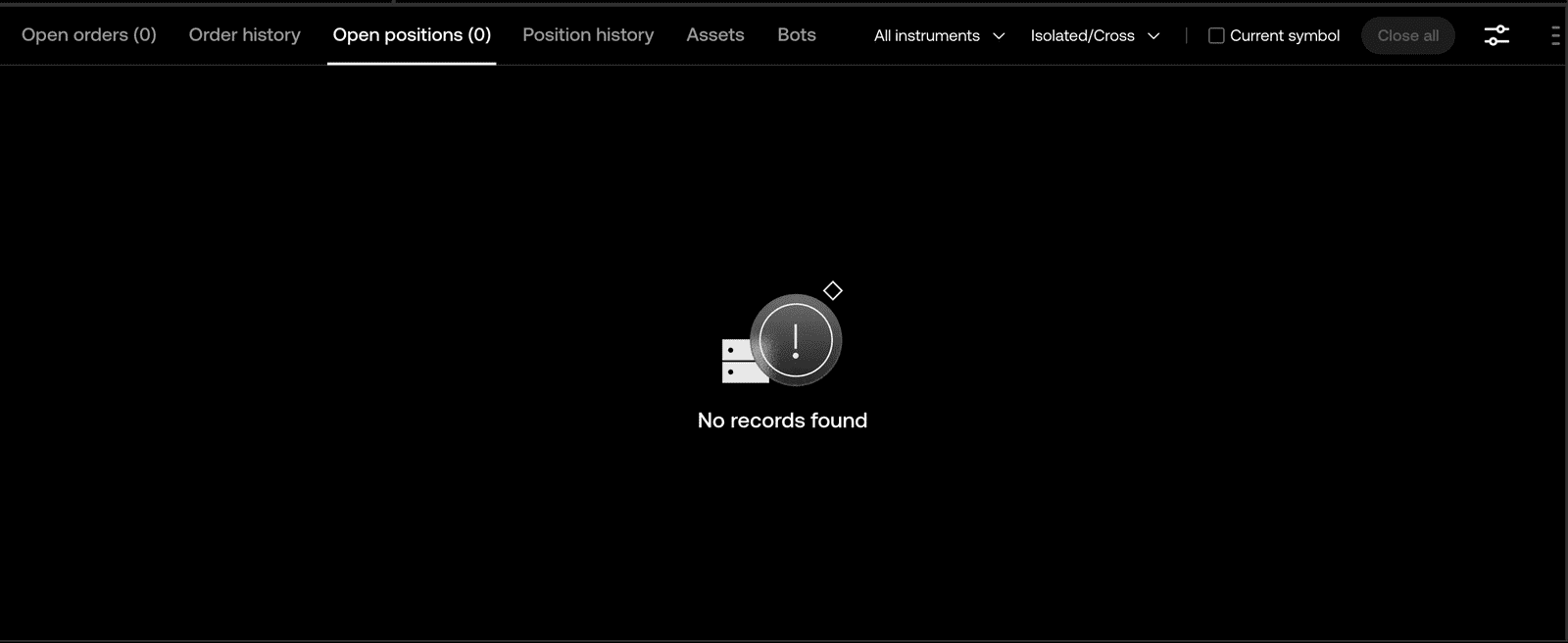
Before I click launch, I open OKX in another tab so you can watch the positions appear in real time. Current state: 0 positions. Empty futures account.
In CoinTech2u:
- Bottom navigation → AI icon → AI trading page
- Select first portfolio KEN001 → Quick action → Quick setup
- The system auto-configures position sizing, leverage, and entry parameters based on the $3,000 capital. I don’t change these.
Two risk-protection settings I do configure manually:
- Asset Guard: 30% — if account drawdown ever hits 30%, the bot closes all positions and stops trading automatically
- Profit Guard: 5% — every time profit reaches 5%, the bot moves the realized profit out of the trading wallet (locked in)
Coin selection: the system suggests 9 coins for $3,000. I keep the default. Don’t get greedy and select more coins — more coins means smaller position sizes per coin, which actually increases risk during volatile moves.
Confirm settings → click Start.
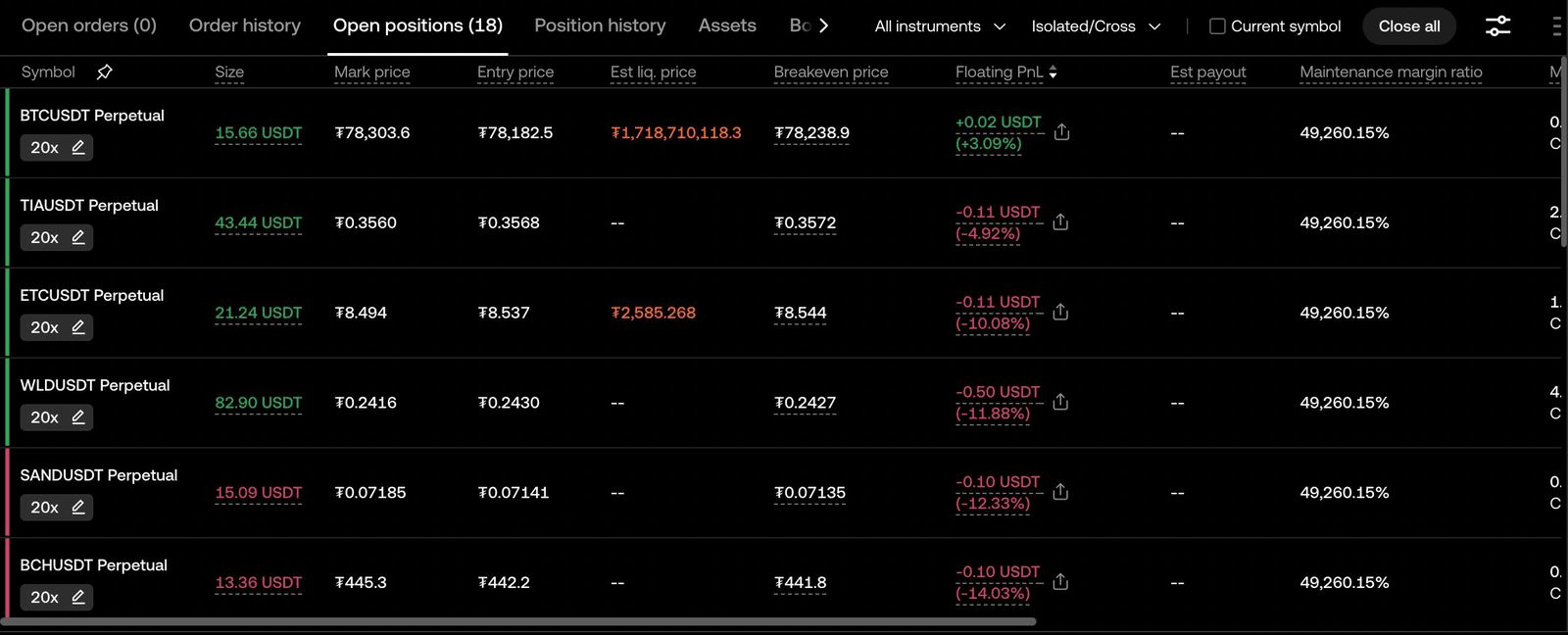
Switch to OKX. Sub-account Ken001 — 18 open positions appear within seconds. 9 coins × 2 directions (long + short hedging) = 18 positions, all opened automatically.
I repeat the same flow for the second portfolio:
- KEN002 → Quick setup → Asset Guard 30%, Profit Guard 5%
- Important: when selecting coins for KEN002, check the “Exclude activated tokens” box — this prevents Ken002 from trading the same coins as Ken001, ensuring real diversification across sub-accounts
- Select 9 coins from what’s left → start
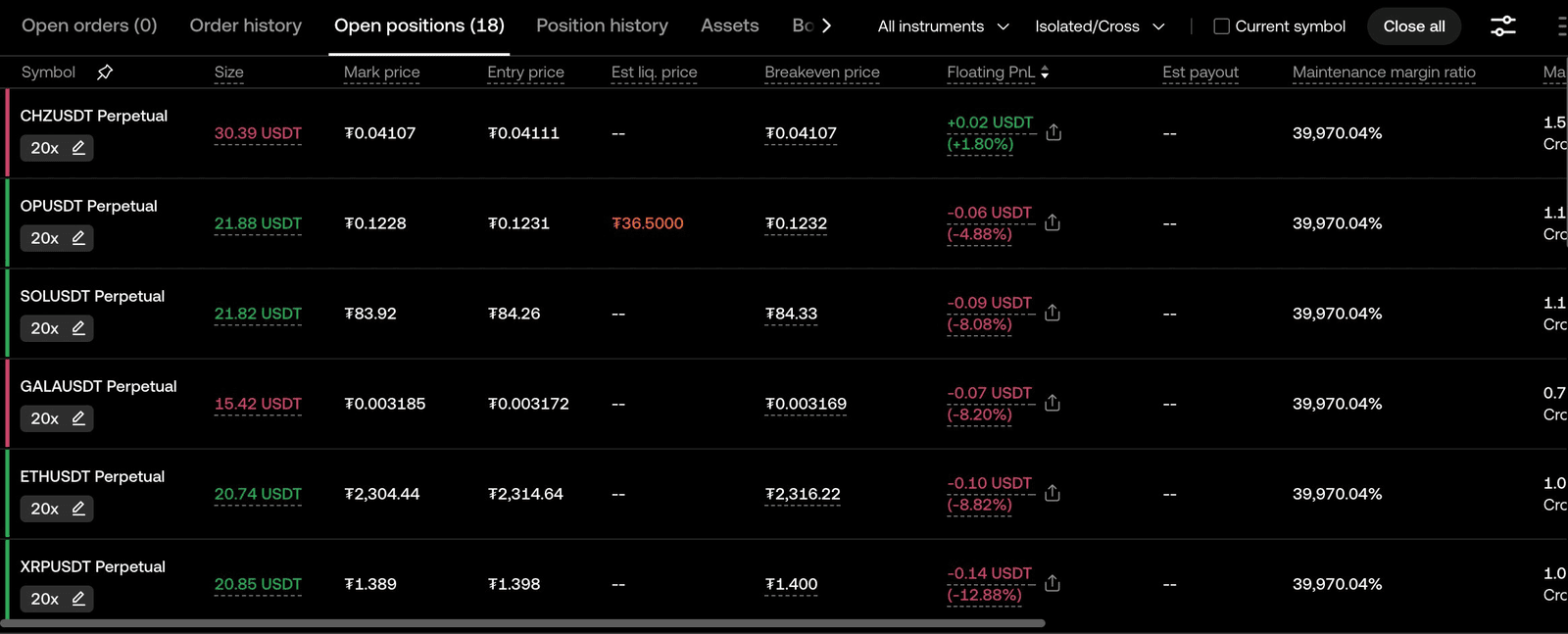
Sub-account Ken002 — another 18 open positions, on a completely different set of coins.
Third portfolio:
- KEN003 → Quick setup → Asset Guard 30%, Profit Guard 5%
- Exclude activated tokens → with $4,000 capital, the system suggests 10 coins (more capital allows one more coin without shrinking position sizes)
- Start
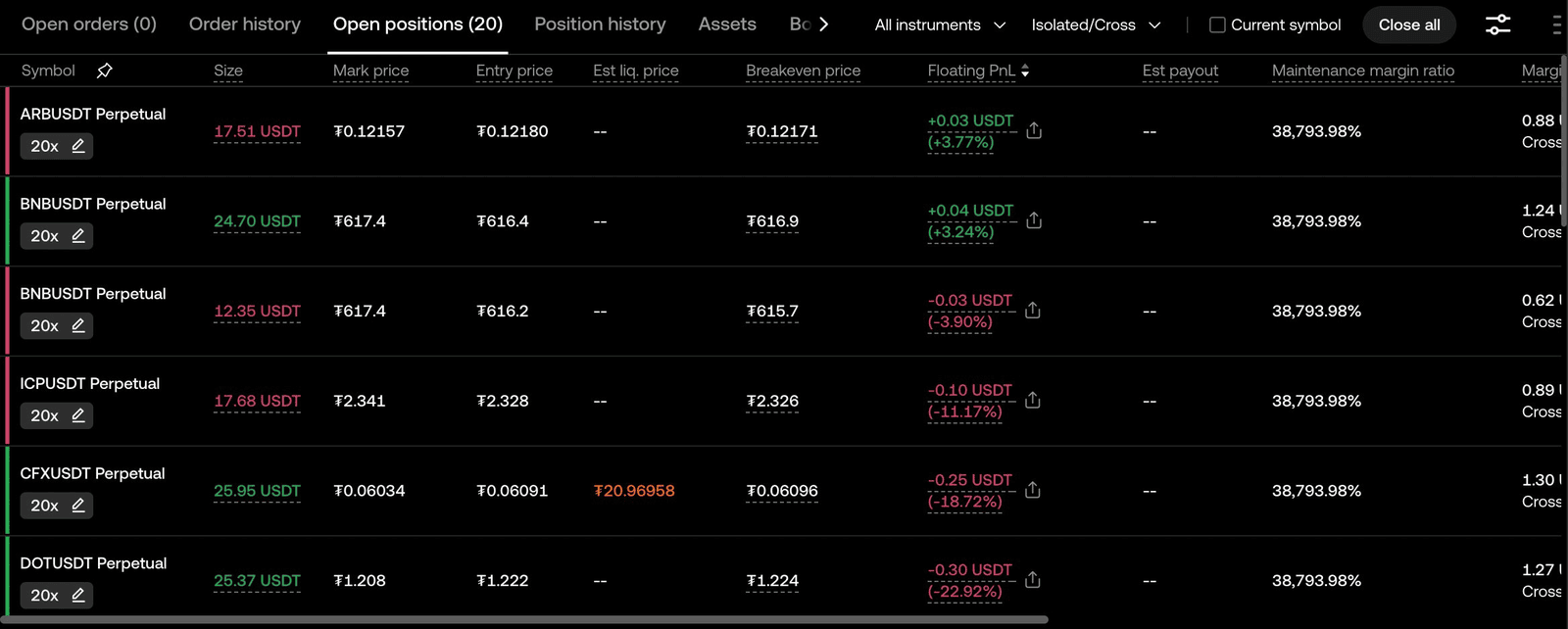
Sub-account Ken003 — 20 open positions (10 coins × 2 directions).
Total across all three sub-accounts: 18 + 18 + 20 = 56 positions, opened in under 60 seconds.
The $10,000 is now fully deployed. Three independent AI configurations, no overlapping coins, hedging both directions on every position, with risk protection layered at the account level.
Risk Parameters: 30% Asset Guard + 5% Profit Lock
The two risk settings I use deserve a closer look, because they’re the difference between “AI trading bot” and “AI trading bot with disciplined risk management.”
Asset Guard — 30% If the account ever loses 30% of its starting equity, the bot automatically closes every position and stops trading. This is your circuit breaker against extreme directional moves. It won’t prevent losses, but it caps them at a level you can recover from.
Profit Guard — 5% Every time the account hits a 5% profit milestone, the bot moves that realized profit out of the trading wallet and into the funding wallet. This is profit-locking — the gain is “off the table” and can’t be eroded by subsequent floating losses.
A note on Asset Guard 30%: this is my setting, not a recommendation. The video you watched and the screenshots in this article use 30% because that fits my risk tolerance. Yours might be different. A more conservative setup might use 20%; a more aggressive setup might use 40%. Set this with your own situation in mind.
Frequently Asked Questions
Is CoinTech2u safe to use on OKX?
Your trading capital never leaves OKX. CoinTech2u connects via Fast API with trade-only permissions — withdrawals are not authorized on the API key. The only money CoinTech2u physically holds is your fee balance (the Point Card credits in Step 7), which is separate from your trading capital. If CoinTech2u ever disappeared, your money would still be in your OKX account.
How does CoinTech2u charge fees?
CoinTech2u charges a 20% performance fee on closed-trade profit only. There’s no monthly subscription, no annual fee, no fee on losses. If a trade closes profitable, the platform takes 20% of that gain. If the bot doesn’t make profit, you don’t pay anything. Fees are deducted automatically from the fee credit balance you topped up in Step 7.
What is the minimum capital for CoinTech2u?
Technically you can start with as little as $20 in fee credits. But based on the capital allocation rule (each $1,000 unit runs 1 sub-account), I’d recommend at least $1,000 USDT of trading capital to give the AI enough room to manage position sizes effectively. Below $1,000, position sizes shrink to a point where meaningful risk diversification across coins becomes hard.
Why split capital across sub-accounts instead of running it all in one?
Each sub-account runs an independent AI configuration with its own coin selection. By splitting the capital and using “exclude activated tokens” on the second and third sub-accounts, you’re trading 28 different coins across three configurations instead of 9 coins under one configuration. If one sub-account hits a bad coin selection, the other two continue independently. It’s risk diversification at the account level, not just the position level.
What does “100% win rate” actually mean for CoinTech2u?
It means every position the bot has closed has closed in profit. It does not mean the account never goes into floating loss — it does (mine currently shows -$90 floating across 22 open positions, alongside the +$606 closed PnL). CoinTech2u is not a Martingale bot, even though it shares the DCA averaging concept. The AI-governed DCA system uses dual-direction hedging plus per-coin hard stop losses — problem positions get stopped out as closed losing trades rather than left to compound, which is why the closed-trade win rate is in the 99%+ range rather than a perfect 100% over long periods. On top of that, the portfolio-level Asset Guard / Equity Guard circuit breaker stops all trading if account drawdown hits your preset threshold (mine is 30%) — protecting your trading capital from any single bad market regime. Always evaluate both closed PnL and current floating PnL.
How long does CoinTech2u setup take?
About 10 minutes if you already have a verified OKX account, working from the steps above. If you’re registering OKX from scratch, KYC verification can add 1-2 hours depending on processing speed. Step 7 (the fee top-up via TRC20) takes about 3 minutes for the on-chain transfer to confirm.
What does “exclude activated tokens” do?
When you launch the second and third sub-accounts, this option (a checkbox in the coin selection screen) tells CoinTech2u to skip any coin that’s already being traded by an earlier sub-account. The result: Ken001 trades 9 coins, Ken002 trades a different 9 coins, Ken003 trades a different 10 coins. No overlap. This is what makes the multi-sub-account setup actually diversified rather than just three copies of the same configuration.
Can I withdraw my funds anytime?
Yes. Your trading capital is in your own OKX sub-accounts. To withdraw, you simply transfer from the sub-account’s trading wallet back to your main account’s funding wallet, then withdraw from OKX as you normally would. CoinTech2u doesn’t have any control over your principal. You may want to stop the bot first (close any open positions cleanly), but there’s no lockup, no withdrawal queue, no waiting period from CoinTech2u’s side.
Conclusion
This is the same setup I’m running right now — $10,000 across three OKX sub-accounts, 56 positions live, with 50 days of $5,000-account history showing the strategy works in practice. I’ll publish a 30-day update on this $10,000 account at the end of the month so you can see how the scaled-up version performs.
To replicate this setup:
- Register on OKX with code KEN20 — lifetime 20% fee cashback
- Sign up on CoinTech2u — pre-filled with the same referral
- Watch the full video tutorial — every click in the 8-step process
If you have questions or hit a snag during setup, find me on Telegram or comment under the YouTube video. I check both daily.

OKX Register — 20% Fee Cashback
Use Ken's exclusive referral code